
The “death by PowerPoint” phenomenon is real, but PowerPoint itself is not the problem. The problem is using it like a script: a long slide deck, a one-way monologue and an audience that’s politely present but mentally elsewhere.
The good news: it doesn’t take much to make a presentation genuinely engaging and memorable.
The fix is rethinking your presentation from talking ‘at’ people to running an interactive session with regular moments where you involve your audience so they can think, respond and take away as much as possible.
Below are practical, tried-and-tested ways to turn a boring PowerPoint into an engaging session, whether you’re running a company meeting, training or event and whether you’re presenting online, in person or hybrid.
We’ll show you how to activate your audience, create meaningful interaction and facilitate it smoothly during your talk.
1. Simplify your slides
Your content might be great, but when slides are crowded with text blocks and bullet points, they become hard to follow.
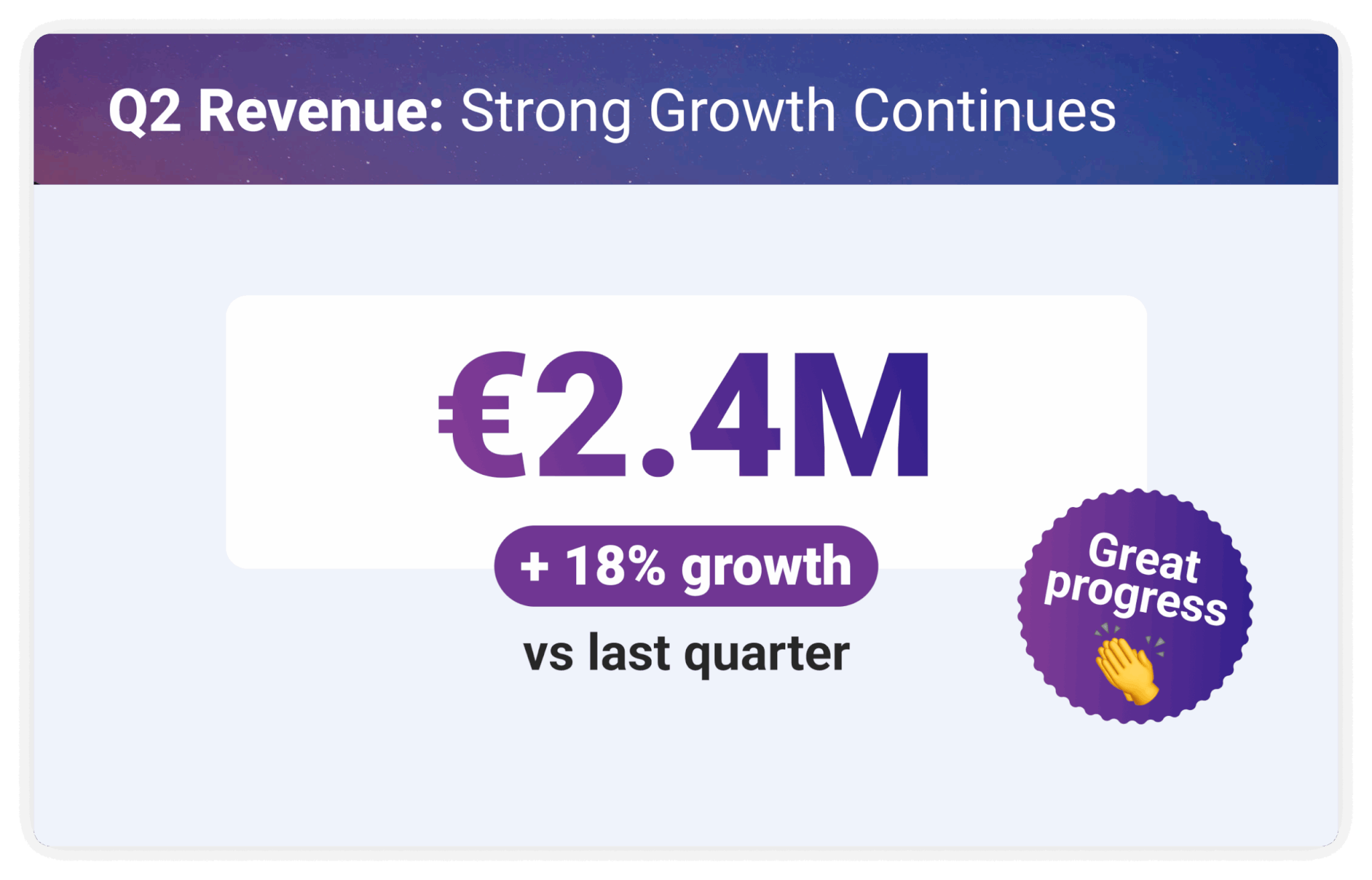
Don’t copy-paste the whole script of your talk. Aim for one idea per slide. Sometimes one strong sentence, a number or even a single word says more than a wall of bulleted lists.
Think of your slide deck as scaffolding; your delivery is what builds the story. Keep slides clean and visually appealing. Instead of blocks of text, support what you’re saying with an image, chart, GIF or even a meme (when it fits).
And remember the rule of three: people usually retain only three key points. Choose the three messages you want your audience to walk away with, and structure your deck so it guides them through those points.
If your presentation revolves around one main argument, use the Aristotelian “triptych” method: “Tell people what you’re going to tell them. Tell them. Then tell them what you told them.” It helps your audience follow the storyline and keeps your message sticky.
2. Create your interaction points in advance
While planning your delivery, map out also where you would add some interactive moments. We recommend adding a lightweight interaction every 5–7 minutes to pull people back in: a quick pulse check, a vote, a question, a short reflection.
Have a content-heavy section? Run a rating poll to check understanding or ask your audience if they have any questions. About to make a strong argument? Ask for your audience’s viewpoint before you reveal your perspective.
Plan several interaction moments like these ahead of time and spread them across your talk where they make sense.
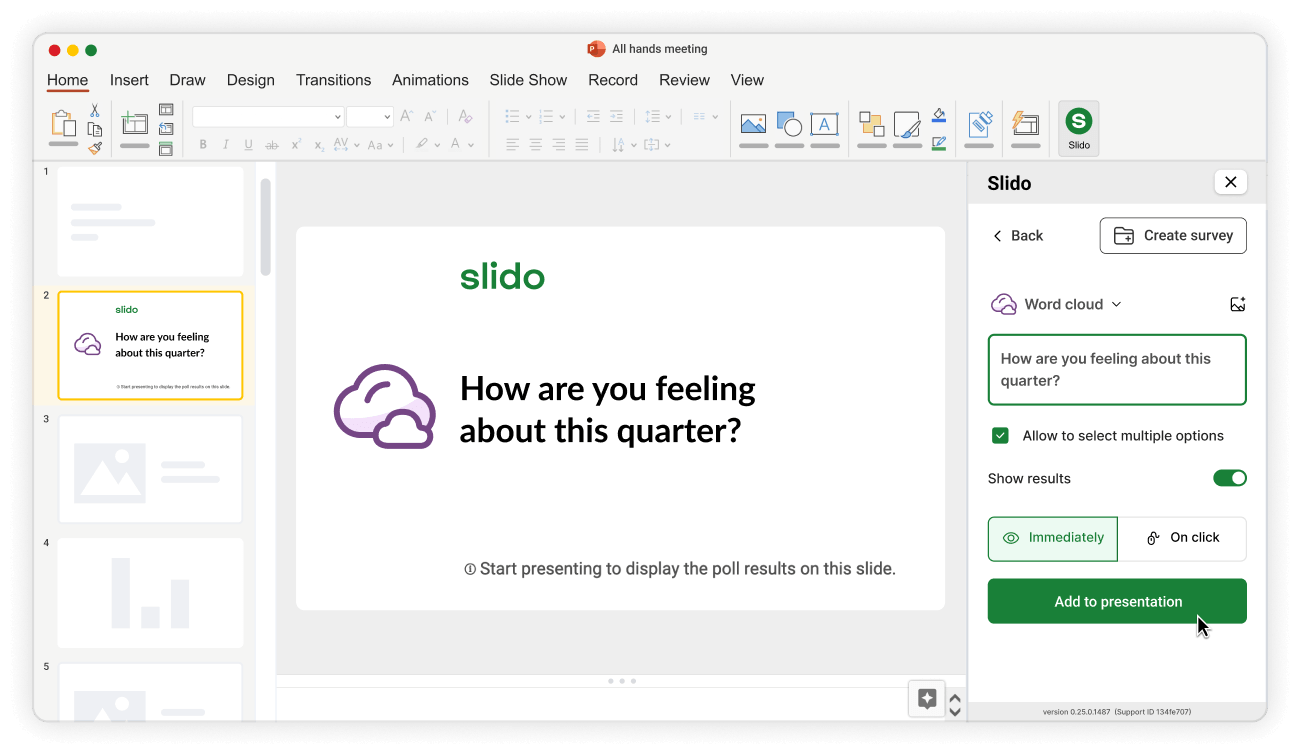
With Slido for PowerPoint, you can add live polls, quizzes and Q&A directly into your deck and run them from a sidebar while you present. Your audience joins instantly via code or QR and your interaction slides run in the flow of your presentation.
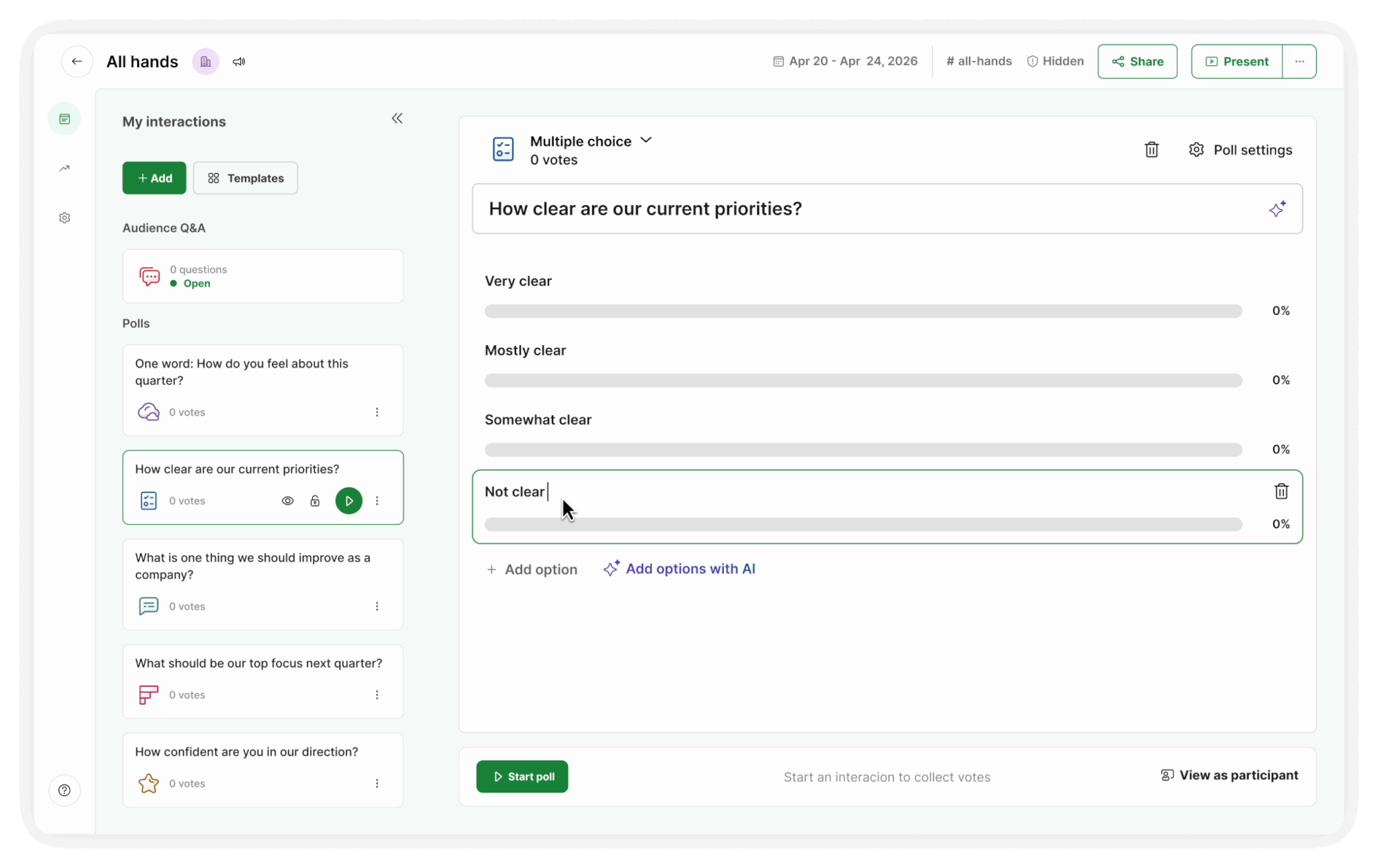
Slido’s AI features can help here too. You can upload your PowerPoint into Slido and let AI suggest polls based on your content. You can simply pick those that you like and run them as you present.
3. Before you kick things off
Once everybody’s joined, welcome your participants warmly and set expectations: what you’ll cover, how long it’ll take and how they can participate. If you use interaction like polls or Q&A, make sure everyone understands the technical side of it.
Explain how to join Slido (or other tools you’re going to use during the presentation) and what you expect them to do (voting, typing ideas, submitting questions).

If you’re presenting online (or in a hybrid setting), ask people to use the Raise hand feature to encourage engagement. You can also ask them to use emoji reactions for fast feedback: ask people to press thumbs up as an indication that they understand or agree, or to express that they like something with a clapping emoji or the heart symbol.
Don’t assume people will just naturally use chat, emoji reactions, or “Raise hand.” They usually won’t unless you actively invite them to.
4. Start strong
Start with a hook. Captivate your audience in the first minute with a bold statement, a short story, a surprising number or a thought-provoking question.
Avoid opening with an agenda slide, you can always cover logistics once you’ve earned attention.
A simple way to start strong is to make your audience part of the talk immediately. Begin with a question that gets them thinking and gives you useful context.
Try:
- “How familiar are you with this topic?” (rating)
- “What are you hoping to get from today?” (open text)
- “Which of these is your biggest challenge?” (multiple choice)
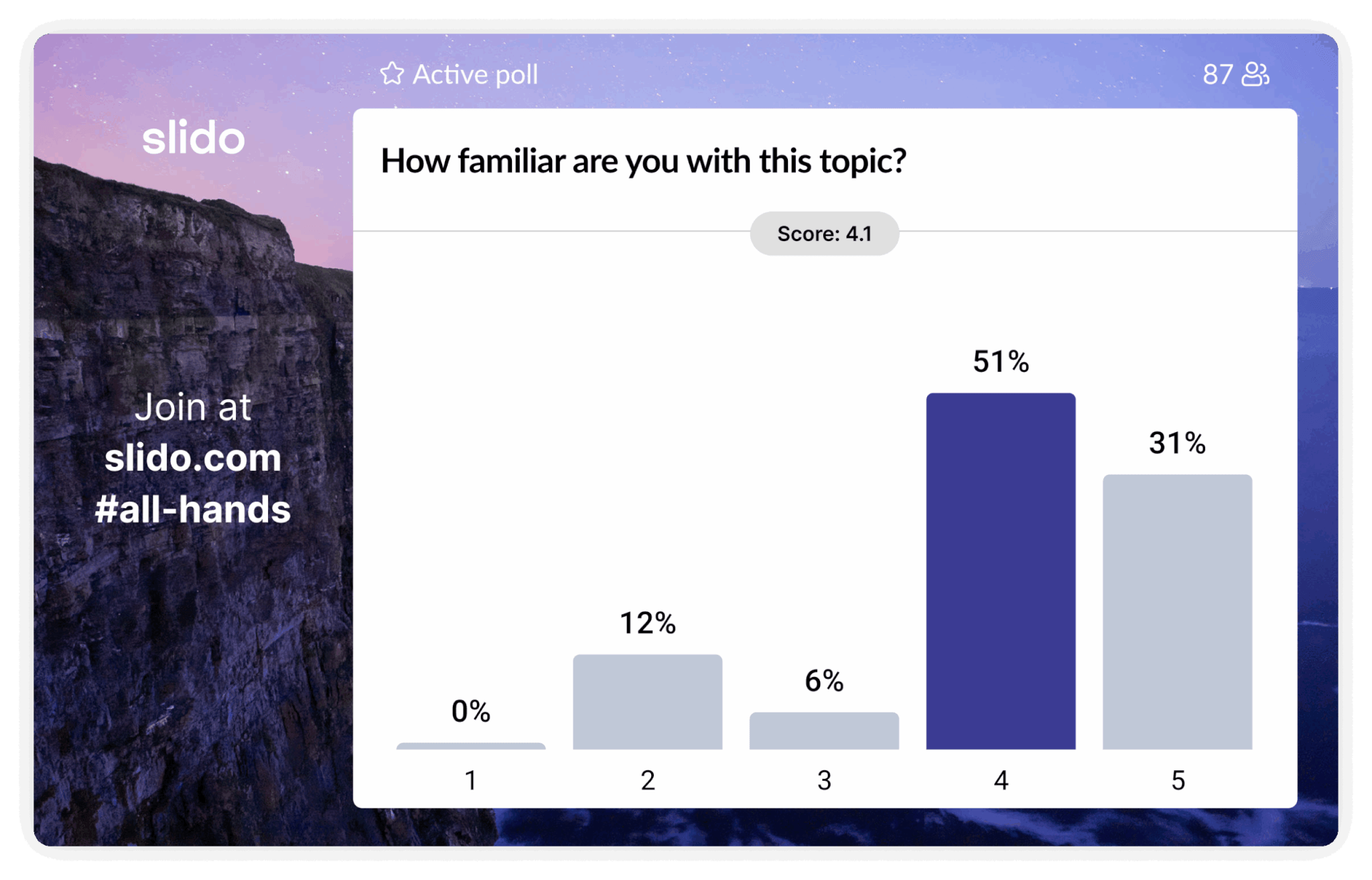
This isn’t just engagement for engagement’s sake. It helps you tailor your examples and pacing on the fly.
An opening poll will also familiarize your audience with the interaction tool you’re using – making it easier for them to interact with you later down the line.
Read more: The Complete List of 200 Icebreaker Questions For Meetings and Tips On How to Use Them
5. Use polls to trigger a discussion and keep people’s attention
Live polls are invaluable because they don’t just collect input, they give you a natural way to start a conversation. The poll results give you a great foundation for the beginning of a discussion.
What’s important is matching the poll type to your goal. Different poll types do different jobs. Here are a few tips for each:
Rating (check clarity, confidence, alignment)
- “How clear was that section?”
- “How confident are you that we’re on the right track?”
- “How important is this priority (1–6)?”
Multiple choice (take a pulse, choose direction, spark debate)
- “Which option should we explore first?”
- “What’s the biggest blocker right now?”
- “Which topic should we spend more time on?”
Ranking (prioritize and reduce circular debate)
- “Rank these initiatives by impact.”
- “Which next steps should come first?”
- “What should we focus on next quarter?”
Word cloud (surface themes fast, add energy)
- “What word describes how you feel about this change?”
- “What’s one challenge you’re facing?”
- “What’s the key takeaway so far?”
Open text (collect ideas, concerns, nuance)
- “What’s one risk we’re missing?”
- “What should we stop / start / continue?”
- “What’s one thing we should try next month?”
One more important rule: if you want honest opinions, ask the question before you present your answer. If you share your viewpoint first, you’ll bias the room. Ask first, then reveal.
6. Break long sections with “checkpoint” slides
After a content-heavy part, don’t just move on. Check understanding.
- “How clear was that?” (rating)
- “Which part needs more detail?” (multiple choice)
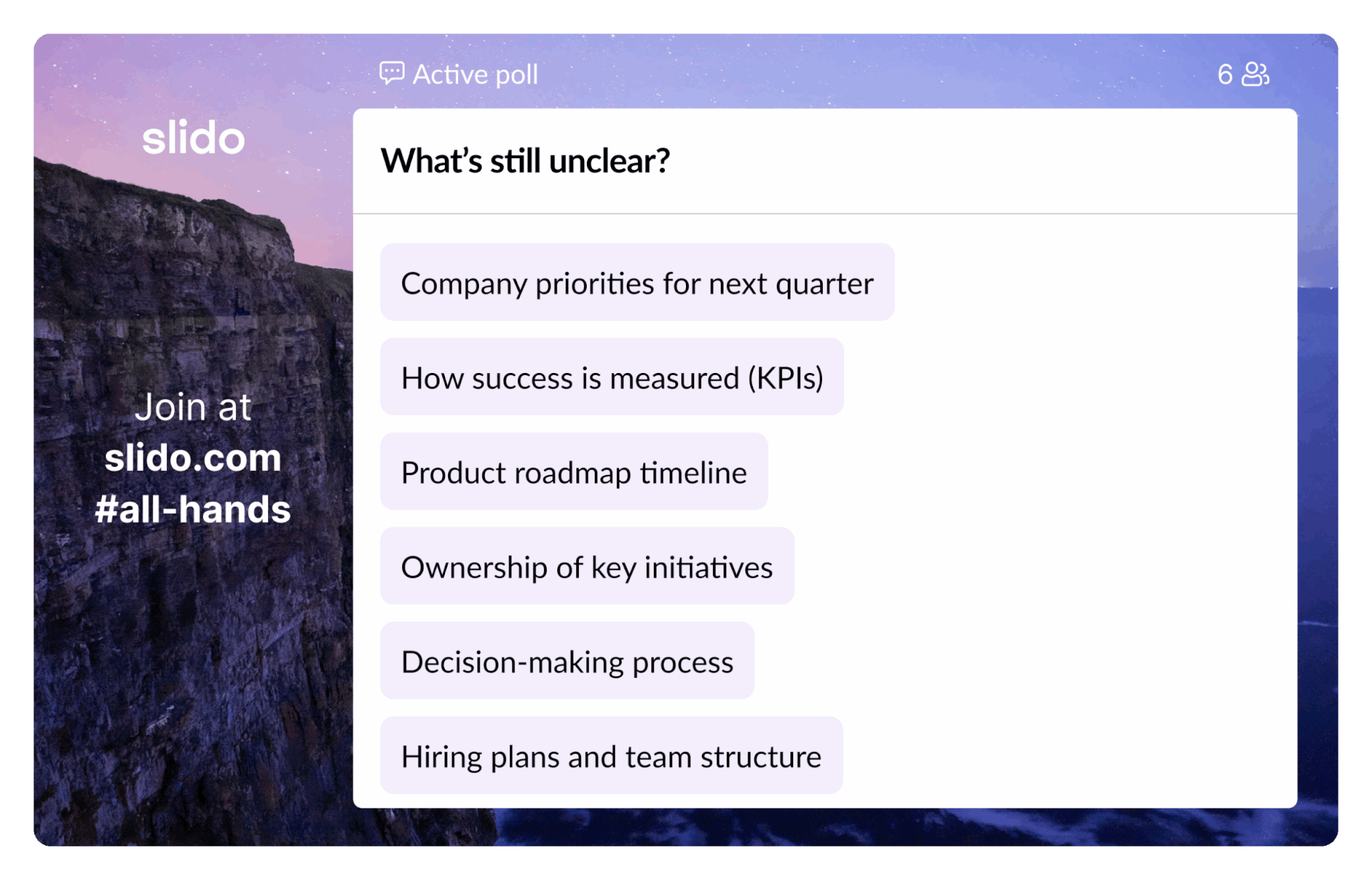
- “What’s still unclear?” (open text)
This makes your next section better and prevents people from quietly getting lost.
7. Turn tedious numbers into a quiz
Business results and project updates don’t have to be a wall of numbers. Turn key slides into a quick “guess first” moment.
Try:
“What do you think our churn was last month?”
“Which metric moved the most?”
“What’s the biggest driver behind this change?”

This approach is already a classic Slido move for making dry updates more engaging.
We use this tactic heavily during our all-hands meetings when our heads of departments present our business results such as revenue, sales, or a number of slidos created in a month/year.
Before they reveal the number, say something like: “Before we look at the numbers, why don’t you guys have a guess at how well we did?” Then run a poll with multiple options and wait for your participants to cast their votes.
8. Run a Q&A session
Always make sure to leave space for Q&A. Whether it’s an all hands meeting, or a powerpoint presentation during a training, keynote or workshop, your participants will surely have questions.
Since “any questions?” rarely works, especially in hybrid sessions, open Slido Q&A and let people submit questions via an app. It’s a much more polished way to do Q&As and you’ll significantly boost participation.
Participants can upvote questions they identify with, so the most popular questions can jump to the top and be answered with priority. Slido allows anonymous questions, too. Giving attendees the chance to ask anonymously can unlock much more honest input, and more questions too.
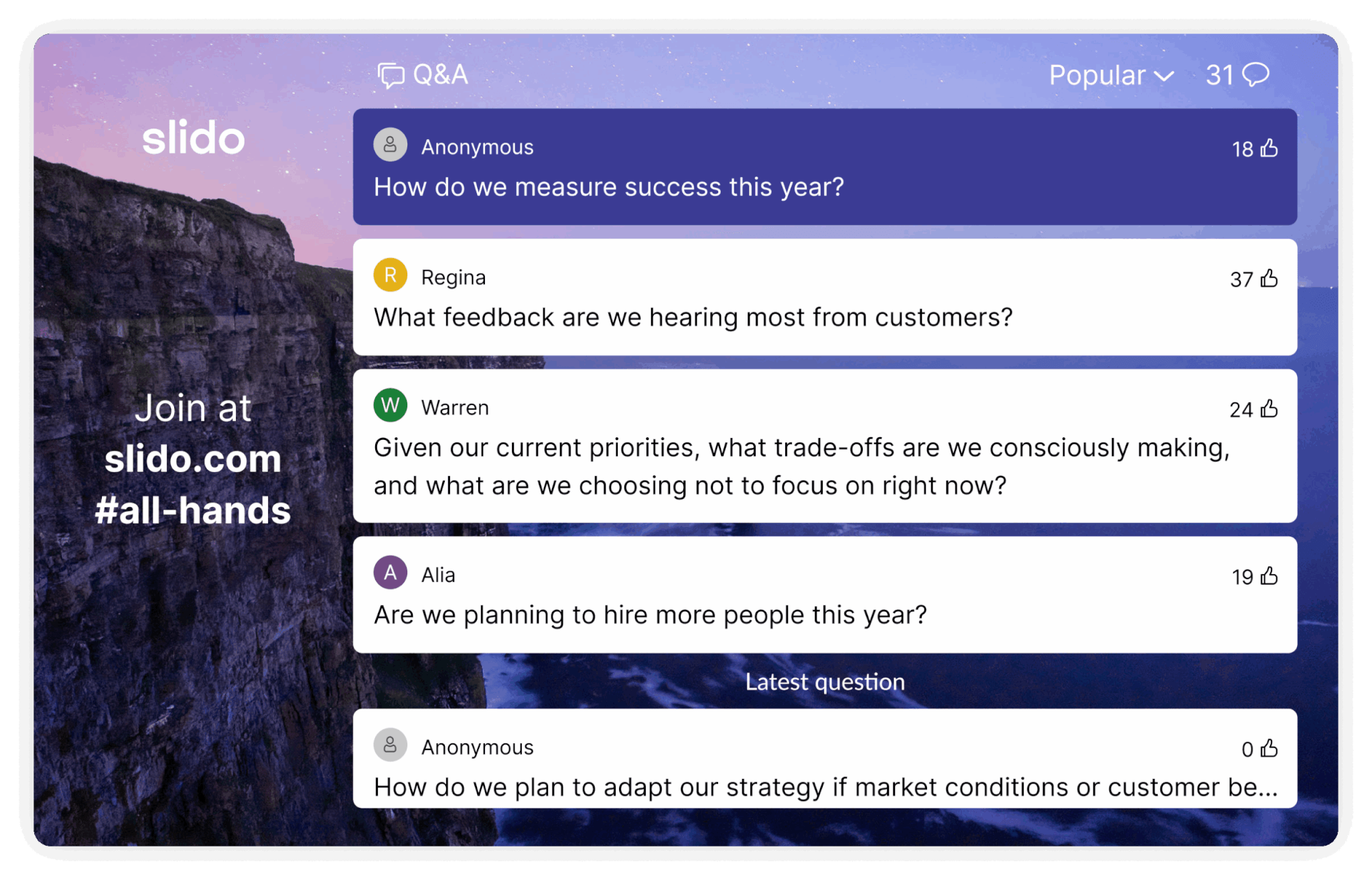
To make Q&A easier to run, have a Q&A host who’s going to be sorting questions, operating Slido and asking questions for people to whom they’re addressed.
9. Give your audience something tangible to leave with
By the end of your presentation, conclude your talk by summing up all the important messages and key lessons on a separate slide. You’ll draw the full circle and your audience will get a nice overview of what they learned.
Or, end your presentation with a call to action or a tangible next step for your audience to do. Encourage your participants to try practices that you shared, provide actionable steps they should follow, and share ways for them to keep in touch with you.
As you move towards the end of your talk, it’s good practice to reiterate the main message of your presentation to give your participants one concrete takeaway to remember.
You can make the ending interactive as well: Ask your audience to think about what they’ve just heard, then run a poll asking your audience: “What are you taking away from this presentation?” or, “What one thing resonated with you the most during this presentation?”
10. Run a short feedback survey at the end
Don’t forget to ask your audience for feedback. We’re always ready to rate our Uber drives or meal deliveries in order to help improve the experience. Why should presentations be any different? A short feedback also helps you improve the next session.
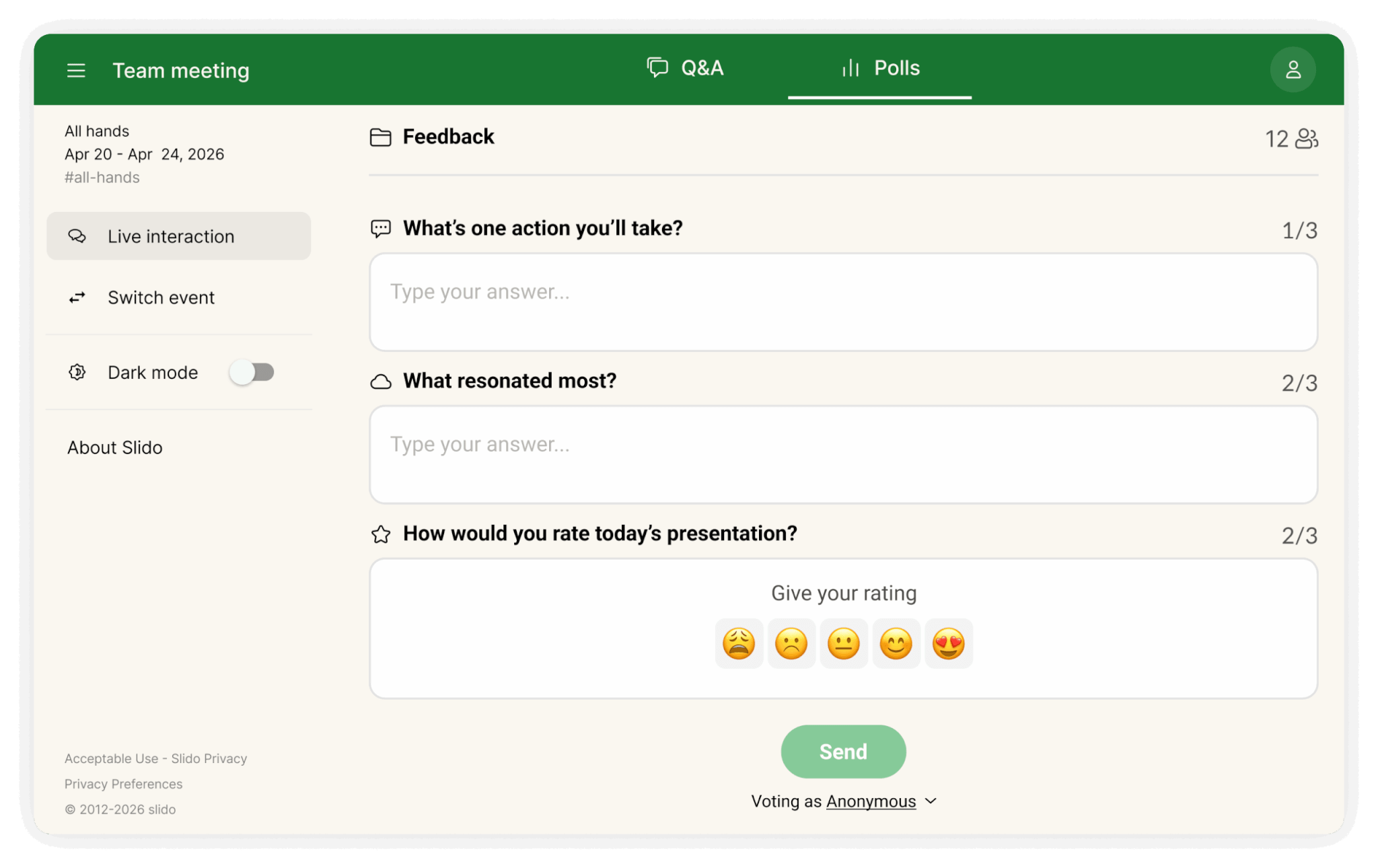
Feedback is the best way for you to learn and find out what you can do better next time. Combine classic star rating with an open text poll so your participants can write more elaborate comments as well.
Two to three questions will suffice – you don’t want to wear your audience down with too long a survey (plus, you’ll boost the response rate!). Here’s an example that you can use:
Try:
“What’s one action you’ll take?” (open text)
“What resonated most?” (word cloud)
“How useful was this?” + “What should improve?” (rating + open text)
How would you rate today’s presentation? (Rating)
What did you like most about this presentation? (Open text)
Is there anything that could be improved? (Open text)
How to add Slido to PowerPoint
If you want interaction to feel like part of the deck (not a separate tool), use Slido for PowerPoint.
With the integration, you can:
- create polls and Q&A from a Slido sidebar without leaving PowerPoint (community.slido.com)
- add polls as slides that run automatically as you present (community.slido.com)
- display the joining code + QR code on Slido slides so people can join instantly (community.slido.com)
There are also AI tools available directly within the PowerPoint workflow to make creating polls faster. (community.slido.com)
For setup, troubleshooting, and IT guides, Slido maintains an updated PowerPoint integration hub in the community. (community.slido.com)
Over to you
Actively involving your audience in your content is key if you want to make your online presentation more interactive and engaging.
Using polls, quizzes, and collecting questions from your audience is one of the easiest ways to create more interaction during your talk.
With Slido for PowerPoint, you can add polls to your presentation and present seamlessly – all from one place. Watch this video to see how Slido for PowerPoint works. Click below to try it.
Add live polls directly to your PowerPoint presentation.
Get Slido for PowerPoint